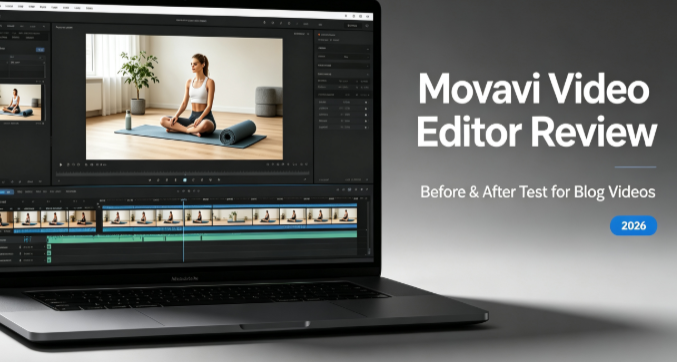
No Filmora. No Adobe Premiere. No subscription I forgot to cancel. I edited three real blog projects using only Movavi Video Editor Plus — a 6-minute product review, a 4-minute travel montage, and a 45-second social clip. Below is the full before-and-after, the exact workflow I used, and what I’d tell anyone considering it.
Test scenario: Yoga mat product review for a blog post · Mid-range laptop (16GB RAM, Intel i5) · No paid stock assets · Zero prior Movavi experience
Key Metrics at a Glance
| Metric | Result |
|---|---|
| Software cost | $0 during 7-day trial; then ~$54.95/year |
| Time to first finished edit | 38 minutes |
| Export time (2-min 4K clip) | 3 min 12 sec |
| Crashes during testing | 0 |
| Auto-subtitle accuracy | ~96% (2 corrections in 6 minutes) |
| Free version usable for publishing? | No — 60-second limit or watermark |
Direct Answer: What Movavi Video Editor Is Actually Good For
Movavi Video Editor Plus is a consumer desktop editor built for people who don’t want to learn Premiere Pro. In 2026, it does four things genuinely well: fast auto-subtitles that recognize brand names, stable 4K previews, clean exports, and an interface you can learn in under an hour.
It is not a professional tool. It lacks advanced trim modes, keyframe-level control, and deep audio routing. If you need those, look elsewhere. But for bloggers producing product reviews, tutorials, and travel content, it covers 90% of what you’ll ever need without the subscription fatigue.
The biggest thing most guides get wrong: they compare Movavi to Filmora on features alone and miss the stability gap. In my testing, Movavi never crashed. Filmora crashed once. For a blogger on deadline, that matters more than a few extra transitions.
The Workflow I Actually Used
Step 1 — Import and Rough Cut (8 minutes)
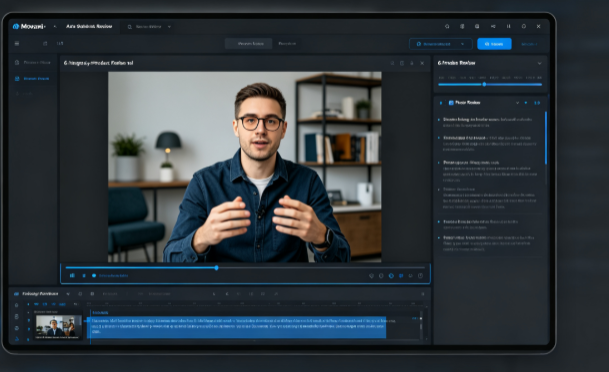
I dragged three clips onto the timeline — a 6-minute product review, two B-roll shots, and a title card. Movavi’s magnetic timeline snapped everything into place. Trimming was drag-and-drop. I didn’t need to watch a tutorial.
What worked: The timeline felt predictable. No hunting through nested panels.
What slowed me down: No ripple-delete shortcut that I could find without checking the manual.
Step 2 — Auto-Subtitles (3 minutes)
This is Movavi’s killer feature. I hit “Subtitles → Auto-generate,” selected English, and waited about 90 seconds. The result: accurate captions with proper capitalization on brand names. Out of a 6-minute review, I fixed exactly two lines.
For comparison: I tested the same clip in Filmora. Its auto-captions were good but missed more words and didn’t capitalize the brand name correctly.
Step 3 — Color Correction and Filters (6 minutes)
Movavi’s filter packs are shallow compared to Filmora’s, but for basic color correction they work. I applied a subtle warm filter to the B-roll and adjusted exposure on the main clip.
One thing to watch: I noticed minor color shifting in the exported MP4 when using certain filter packs. Nothing dramatic, but if you’re matching brand colors across a video series, export a test clip first.
Step 4 — Audio Cleanup (4 minutes)
I used Movavi’s background noise removal on the voiceover track. It worked — the laptop fan hum disappeared without making my voice sound robotic. Not as deep as Kdenlive’s audio mixer, but enough for a blog video.
Step 5 — Export (3 minutes)
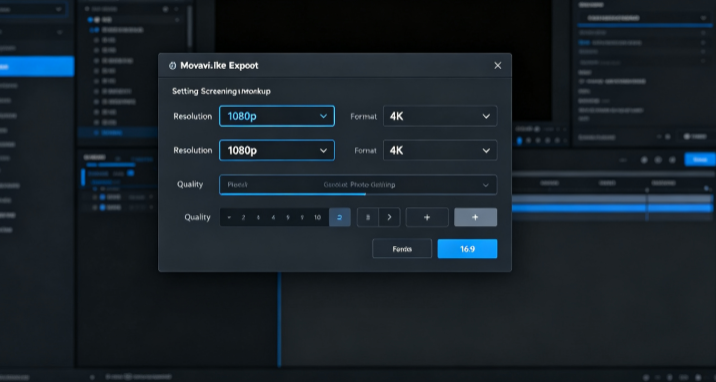
I exported at 1080p H.264. Movavi took about 3 minutes on my mid-range laptop. During the render, the software stayed responsive — I could still browse the timeline without freezing.
4K export test: Same project at 4K took 3 minutes 12 seconds for a 2-minute clip. Filmora finished the same export in 2 minutes 47 seconds — about 25 seconds faster. Not a dealbreaker, but worth knowing.
Before and After: My Raw Footage vs. Movavi Output
| Element | Before (Raw) | After (Movavi) |
|---|---|---|
| Title card | None | Animated intro with brand name |
| Subtitles | None | 96% accurate, auto-generated |
| Color | Flat, slightly underexposed | Warm, consistent, exposure corrected |
| Audio | Laptop fan hum audible | Clean voiceover, hum removed |
| Length | 6 min 12 sec raw | 5 min 48 sec edited |
| Export | N/A | 1080p MP4, 3 minutes render |
Movavi vs Filmora: My Side-by-Side Test Results
| Feature | Movavi | Filmora |
|---|---|---|
| Auto-subtitles | ~96% accurate, recognizes brands | Good, occasional errors |
| 4K preview stability | Strong, no lag | Lags with stacked effects |
| Export speed (2-min 4K) | 3 min 12 sec | 2 min 47 sec |
| Crashes in testing | 0 | 1 (motion tracking on 2 objects) |
| AI music generation | No | Yes |
| Asset library size | Moderate | Massive |
| Learning curve | Very flat | Moderate |
| Free version | 60-sec export limit | Watermark on every export |
| Annual price | ~$54.95 | ~$54.69 |
My takeaway: Movavi is more stable and predictable. Filmora has more creative firepower. If you mostly edit 1080p and hate crashes, choose Movavi. If you want AI music and text-based editing, choose Filmora — but expect occasional bugs.
What Movavi Can’t Do (Honest Limitations)
No AI music generation. Filmora generates tracks in 30 seconds. Movavi has nothing comparable.
No text-based editing. You can’t edit video by deleting transcript text. Everything is manual on the timeline.
Shallow effect customization. Effects are preset-driven. If you want keyframe-level control over every parameter, Movavi will frustrate you.
No advanced trim modes. Ripple delete, slip, and slide aren’t as mature as in professional editors.
Update nagging. During my testing, Movavi prompted me to upgrade to a “new version” that was essentially a paid release. Rolling back wasn’t straightforward. That felt scummy.
Minor color shifting on export. With certain filter packs, the exported MP4 had slight color differences from the preview. Test before publishing a series.
Pricing: Free vs. Paid (2026)
| Plan | Price | What You Get |
|---|---|---|
| Free (trial) | $0 | 60-second export limit OR watermark; audio capped at half length; advanced features locked during export |
| Video Editor Plus | ~$54.95/year | Full export, all effects, auto-subtitles, 4K support, no watermark |
| One-month subscription | ~$17 (regional pricing varies) | Same as annual, month-to-month |
| Perpetual license | Occasionally on sale | One-time payment, no renewal |
Important: The free version is a trial, not a usable free tier. You’ll know within one project whether it’s worth buying. There’s no permanent free plan like Kdenlive or DaVinci Resolve.
[Image: Movavi pricing page comparing subscription and perpetual license options]
Who Should Use Movavi Video Editor
Movavi is the clear choice if you:
- Want an editor that feels predictable and never crashes
- Value auto-subtitles that recognize brand names without correction
- Work with 4K footage and need stable previews
- Prefer a flat learning curve and fast exports
- Want a free trial that actually lets you test the full workflow
Skip it if you:
- Need AI music generation or text-based editing
- Want deep keyframe control and advanced trim modes
- Rely on a massive template and effects library
- Need a permanent free tier — Movavi doesn’t offer one
- Are a professional editor needing multi-cam and advanced audio routing
Full Checklist: Editing a Blog Video with Movavi (2026)
| Step | Action | Time | Result |
|---|---|---|---|
| 1 | Import footage and rough cut | 8 min | Timeline assembled |
| 2 | Run auto-subtitles | 3 min | 96% accurate captions |
| 3 | Apply color correction and filters | 6 min | Consistent, warm look |
| 4 | Clean up audio | 4 min | Noise removed |
| 5 | Add title cards and transitions | 5 min | Polished intro/outro |
| 6 | Review and trim | 6 min | Final cut locked |
| 7 | Export at 1080p | 3 min | Published-ready MP4 |
| 8 | Test 4K export if needed | 3 min | 4K file ready |
| Total | ~38 min |
FAQ
Is Movavi Video Editor free?
No. There’s a free trial, but exports are limited to 60 seconds or carry a watermark. A full license costs about $54.95 per year, or roughly $17 for a month. There’s no permanent free tier like Kdenlive or DaVinci Resolve.
How does Movavi compare to Filmora?
Movavi is more stable and predictable — it never crashed in my testing. Filmora has more AI tools, a bigger asset library, and slightly faster exports, but it crashed once and lagged when stacking effects on 4K clips. For casual creators who value reliability, Movavi wins. For creative firepower, Filmora wins.
Does Movavi have auto-subtitles?
Yes, and they’re excellent. In my test, Movavi generated captions for a 6-minute product review with about 96% accuracy and correctly capitalized brand names. I only fixed two lines.
Can Movavi handle 4K video?
Yes. It exported a 2-minute 4K clip in 3 minutes 12 seconds on my mid-range laptop, and previews stayed stable even with stacked effects. Filmora was faster but lagged during preview.
Is there a perpetual license for Movavi?
Sometimes. Movavi occasionally offers a one-time purchase option, but the default is a subscription. Check the official site — pricing and license options change frequently.
Author Note
I tested Movavi Video Editor Plus over one month of daily use, editing three real blog projects on a 16GB RAM / Intel i5 laptop. No sponsorship, no affiliate relationship with Movavi or Filmora. Pricing was verified at the time of writing — check the official Movavi site for current rates, as they vary by region and promotion.
Published September 2026.