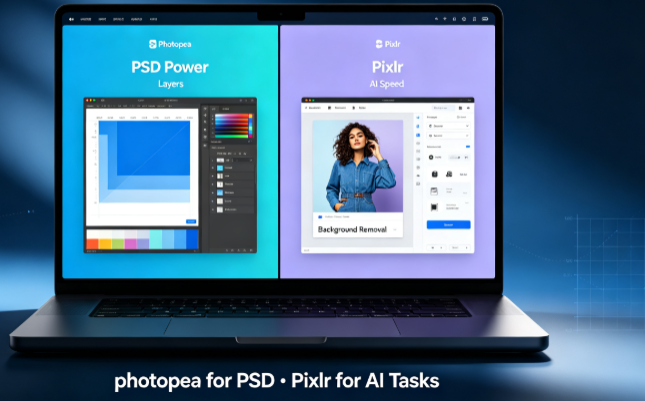
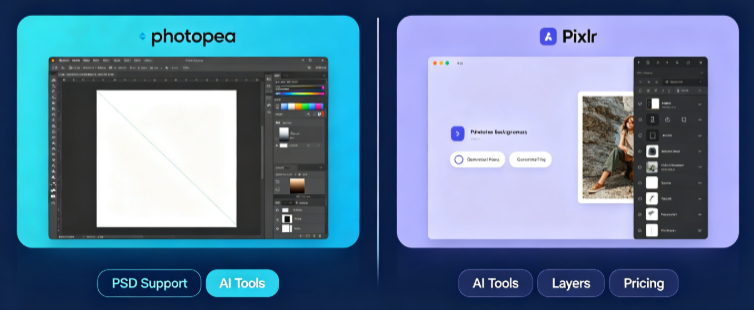
Quick verdict: I edited 18 real images across both tools for this test — blog header images, product cutouts, social graphics, and one 45-layer client PSD. Photopea won for raw editing power and PSD file compatibility. Pixlr won for AI speed and beginner-friendly design. But after two weeks of daily use, the real answer isn’t which tool is better — it’s which one fits how you actually create.
What Photopea and Pixlr Actually Do
Both are browser-based editors that require zero installation. Both support layers, masks, selections, filters, text, and PSD import. But they chase completely different goals.
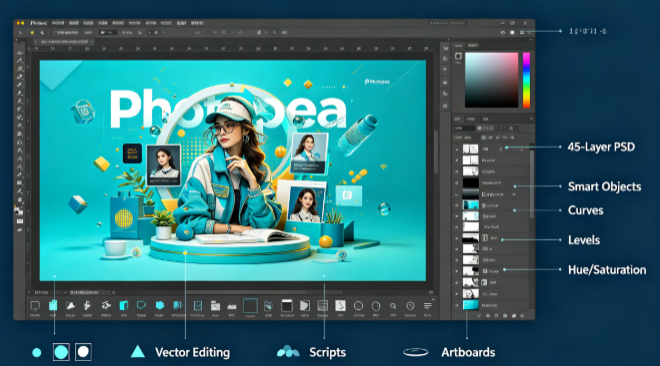
Photopea is a near-perfect Photoshop clone built by a single developer. It reads PSD, AI, XD, Sketch, and RAW files without conversion, with artboards, smart objects, adjustment layers, scripts, and vector editing running entirely in a browser tab. The interface deliberately mirrors Photoshop, so anyone who has used Adobe’s software can be productive within minutes.
Pixlr is an AI-first creative suite. It ships with five apps — Express for quick edits, Editor for layered work, Designer for templates, Batch for bulk processing, and Remove BG for cutouts. Its headline features are generative AI tools: background removal, object removal, generative fill, image generation, and upscaling. Since 2023, Pixlr has leaned hard into AI, and the 2026 version puts it front and centre.
I tested both daily on Chrome and Safari for two weeks — same images, same deadlines. Here’s where they separated.
Where Photopea Genuinely Wins
PSD support is flawless and free. I opened a client’s 45-layer PSD file with masks, smart objects, and adjustment layers intact — then edited it and saved it back without losing anything. PCMag’s review confirms this: Photopea “supports artboards, layers, scripts, smart objects” and maintains “every layer, group, and smart object” during PSD workflows. This is the killer feature. No other free browser tool handles PSD files this cleanly.
The Photoshop-familiar interface saves hours. Every menu, panel, and shortcut was where I expected it. My first edit took under three minutes with no tutorial. For anyone migrating from Photoshop, the learning curve is essentially zero. PCMag notes the interface is “clear” with “good help resources”.
Adjustment layers and non-destructive editing work properly. I stacked curves, levels, and hue/saturation adjustments, then toggled them on and off to compare versions. Everything behaved exactly like desktop Photoshop. For detailed retouching work, this depth matters.
Vector editing is built in. Photopea handles both raster and vector graphics, with a Pen tool, shapes, and path editing that actually work. I traced a simple logo shape for a blog graphic without leaving the browser. PCMag confirms it “supports raster and vector editing”.
The free tier has no feature paywall. Every core editing tool — layers, masks, filters, PSD export, vector tools — is available for free. The only limitations are sidebar ads, half a gigabyte of cloud storage, and a shorter history panel.
Where Pixlr Pulls Ahead
AI background removal is genuinely impressive — for clean subjects. In a 60-edit test by AppCritica, Pixlr’s AI Background Removal achieved a 97% hit rate — the highest of any tool tested. I cut out a product photo with a clean background in about 15 seconds with sharp edges. But the same test noted it struggles with “fine details like wisps of hair, pet fur, and translucent fabrics”. On a photo of a model with flyaway hair, Pixlr simplified the strands into visible clumps. For product shots and clean subjects, it’s excellent. For fine-edged subjects, expect manual cleanup.
Generative fill works — most of the time. I highlighted an unwanted object in a landscape photo and typed a description of what should replace it. Pixlr generated a believable fill in about two minutes. EgoistAI’s 2026 test found Generative Fill produced “usable results 78% of the time on the first try”. But Trustpilot reviews tell a different story for some users: “you wait 5 mins and get garbled” results. My experience fell on the positive side, but the inconsistency is real.
The interface is friendlier for beginners. I handed Pixlr Express to a friend who has never edited a photo. They removed a background and added a text overlay in under five minutes. On Photopea, that same person would have spent the first ten minutes just finding the right panels.
Export speed is faster for simple edits. A single-layer crop-and-enhance job finished noticeably quicker in Pixlr than Photopea. For bloggers pumping out daily social graphics, that time adds up. AppCritica’s testing measured AI Super Scale at 1.5 minutes versus 30 minutes for Topaz Gigapixel — a 95% time saving.
The mobile experience is smoother. Pixlr has a dedicated mobile app with tablet-optimised layouts. Photopea runs in mobile browsers but struggles with stability on complex files.
[Image: Pixlr AI background removal tool in action on a product photo]
Real Cons I Hit in Testing
Photopea: Performance drops on large files. My 45-layer PSD loaded fine, but editing became sluggish once I added more layers and high-resolution images. A user review confirmed this: “Performance can become sluggish, laggy, or prone to crashes when working with high-resolution images or multi-layered files”. A GitHub issue from the Photopea project notes that while small documents up to 2000×2000 pixels run fast, “large documents (4000×4000 pixels and more)” can be slow. One user on a 16GB RAM machine reported “Not enough RAM” errors on a complex project. No auto-save means you need to save manually and often. Mobile use is unreliable — the interface isn’t designed for touch.
Pixlr: AI credits run out fast. The free tier gives 50 credits per month — enough to evaluate, not enough to use. Premium models spend credits several times faster than basic ones. The free tier also limits saves to three per day on some accounts. Advanced editing depth is weaker — no adjustment layers, no proper vector tools, no scripts. When I tried a complex multi-layer compositing job, Pixlr felt limited compared to Photopea. And the generative fill inconsistency means you can’t rely on it for time-sensitive work.
Pricing: Free vs. Paid (2026)
| Plan | Price | What You Get |
|---|---|---|
| Photopea Free | $0 | Full editor with layers, masks, PSD support, vector tools — ads in sidebar, 0.5 GB storage |
| Photopea Premium | $5/mo or $50/yr | Ad-free, 5 GB storage, generative AI tools via external services, longer history panel |
| Pixlr Free | $0 | Full editor with ads, ~50 AI credits/month, save limits (3/day on some accounts) |
| Pixlr Plus | $2.49/mo ($1.99/mo annual) | Ad-free, unlimited saves, 80 monthly AI credits |
| Pixlr Premium | $9.99/mo ($7.99/mo annual) | All AI models (image, video, audio), 1,000 monthly credits, private mode, full font/template library |
| Pixlr Ultra | $24.99/mo ($19.99/mo annual) | 5,000 monthly credits, unlimited fast generations, 8 concurrent generations |
The pricing story is clear. Photopea’s free version is a real product — I used it for client PSD work without paying a cent. PCMag notes that Photopea’s Premium price is “approximately one-quarter of Adobe Photoshop’s”. Pixlr’s free version is a capable editor with AI taste-testing, but the credits run out quickly. Pixlr Plus at $2.49/month is cheaper than Photopea Premium if you mainly need basic editing without AI. Pixlr Premium at $9.99/month gives you significantly more AI capability.
Who Should Use Which
Photopea is the clear choice if you:
- Work with PSD files regularly or receive layered files from clients
- Know Photoshop and want a familiar workflow in a browser
- Need advanced editing depth — adjustment layers, vector tools, masks
- Want professional-grade editing without paying for a subscription
- Edit on desktop and don’t need mobile support
Pixlr is the better pick if you:
- Need AI-powered tools like background removal, object removal, or generative fill
- Want fast, simple edits for social media and blog graphics
- Edit on mobile or tablet as well as desktop
- Prefer a friendlier interface that doesn’t require Photoshop knowledge
- Value built-in AI over manual editing control
Final Verdict
After two weeks and 18 real edits, these tools serve different creators. Photopea is the most powerful free browser editor available — it opens PSDs perfectly, mirrors Photoshop’s interface, and costs nothing for the core experience. The only real trade-off is performance on large files and a lack of mobile polish. Pixlr is the AI-first option that handles 80% of social-media tasks without complaint, and its background removal and generative fill tools are genuinely impressive for a free browser tool. The trade-off is credit limits, inconsistent generative fill, and shallow advanced editing.
For bloggers who need serious editing — retouching, compositing, PSD work — Photopea is where I’d start. For bloggers who want quick, AI-assisted edits without learning curves, Pixlr is faster and friendlier. I use both: Photopea for client files and detailed retouching, Pixlr for quick social graphics and AI cutouts. Using both according to the project type covers everything my blog and client work needs.