Quick verdict: I’ve designed 40+ blog headers, social graphics, Pinterest pins, and one 30-page lead magnet entirely inside Canva. It replaced my need for a designer for 90% of my visual content. Here’s the honest breakdown.
What Canva Actually Does
Canva is a browser-based design platform that runs on any operating system. No install, no license key, no file compatibility issues. It covers graphic design for social media, presentations, documents, print materials, video, and even basic websites.
The free tier is genuinely free — not a 14-day trial. You get access to over 1.6 million free templates, the core drag-and-drop editor, basic AI tools under the Magic Studio umbrella, and 5GB of cloud storage. The paid Pro plan unlocks over 100 million premium stock assets, the Brand Kit, Background Remover, Magic Resize, and 100GB of storage.
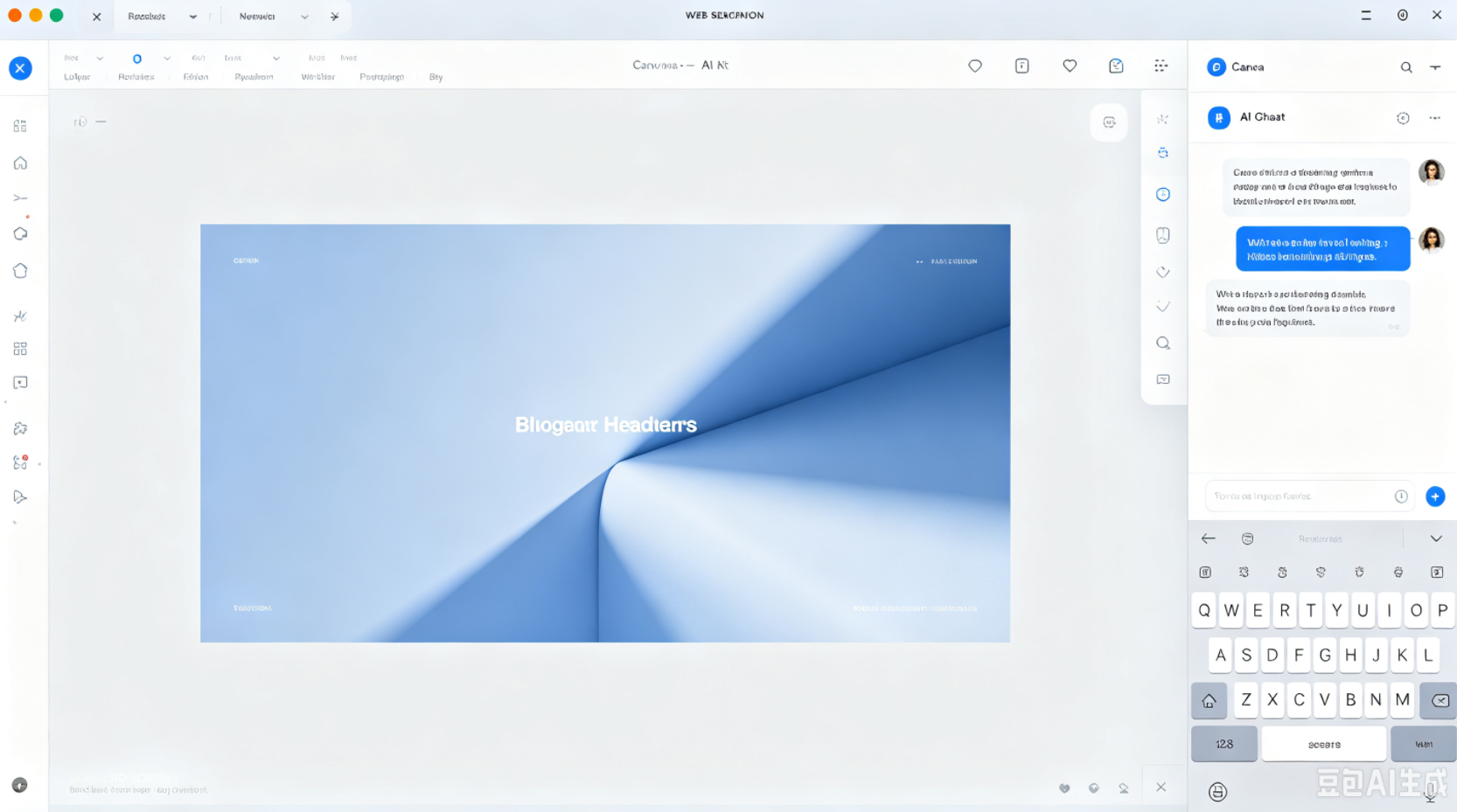
What changed my workflow most is Canva AI 2.0. You can chat with the AI inside the editor, ask it to swap an image or adjust a headline, and it only changes that element — everything else stays untouched. There’s also a Memory Library that learns your style over time, so designs start looking like yours instead of a generic template.
The Pros I Actually Experienced
The template library is genuinely vast. I found usable starting points for every project type — blog headers, Pinterest pins, Instagram carousels, email banners. About 60% of templates are genuinely usable, which sounds low until you realize that’s still hundreds of thousands of solid options. For a blogger without a design background, that’s more than enough.
The drag-and-drop editor is the fastest I’ve used. I built a full Instagram content pack — 12 posts, 4 Reel covers, and a story highlight set — in about 90 minutes. Elements snap into place, alignment guides work, and the mobile app mirrors the desktop experience well enough for quick edits on the go.
Magic Resize saved me hours every week. One click and a Pinterest pin becomes an Instagram story becomes a Facebook cover. For a blogger publishing across multiple platforms daily, this alone justifies the Pro subscription. Before Canva, I was manually resizing in a separate editor — a 15-minute task per graphic.
The Background Remover is shockingly good. I tested it on product photos and blog portrait images. Edges came out clean, and the result was usable without manual cleanup. This used to be a Photoshop-only feature that took me 10 minutes per image. On Pro, it’s available for unlimited use.
Canva AI 2.0 changed how I brainstorm. I described a vague idea — “a clean, minimalist header for a post about morning routines” — and it generated three editable design concepts with real objects, not a flat image. I could then click into any layer and modify it directly. That’s a meaningful upgrade from the one-shot AI tools I’ve tried elsewhere.
The mobile app is genuinely usable. Unlike most design tools that treat mobile as an afterthought, Canva’s mobile app is powerful enough that I’ve finished full blog headers on my phone during commutes. Elements snap cleanly, the touch targets are well-sized, and changes sync instantly to the desktop version.
The free tier is not a demo. I used the free version for two weeks before upgrading. Every core design tool — templates, elements, text, basic effects — is available without paying. The only real limits are the AI credits and a few premium exports. For a casual blogger, the free tier alone might be enough.
A Few Things Worth Keeping in Mind
Templates can make your work look like everyone else’s. This is Canva’s biggest weakness for bloggers trying to build a distinct brand. I caught myself using the same hero layout across three different blog posts because it was the first result in search. I had to actively fight the template gravity by customizing fonts and colors more aggressively.
The editor slows down on complex designs. When I added too many layers, high-resolution images, and custom fonts to a single canvas, the browser tab became sluggish. For simple social graphics, no problem. For a 30-page lead magnet with images on every page, I felt the lag.
Fine typographic and vector control is limited. Canva doesn’t do CMYK color profiles, real vector editing, or RAW photo processing. This is intentional — Canva optimizes for speed over precision. If your blog needs precise brand consistency across print and digital, you’ll want a second tool for final adjustments.
How Canva Compares to Its Closest Alternatives
| Feature | Canva | Photopea | Figma | Affinity |
|---|---|---|---|---|
| Price | Free; Pro ~$15/mo | Free; Premium ~$5/mo | Free Starter; Pro $15/editor/mo | Free (Canva account) |
| Learning curve | Almost zero | Familiar to Photoshop users | Moderate | Moderate |
| Template library | 1.6M+ free; 100M+ premium assets | None | Community files | None |
| Vector editing | Limited | Yes | Yes (strongest) | Yes |
| PSD support | Import only, limited layers | Native, lossless | No | No |
| Best for | Speed, social content, non-designers | PSD editing, retouching | UI/UX, product teams | Professional vector/photo/layout |
| Mobile experience | Excellent app | Unstable | Limited | Limited |
The comparison reveals Canva’s unique position. It’s the only tool here designed for people who need to produce professional-looking content without a design background. Photopea and Affinity are for editing and precision. Figma is for interface and product design. Canva is for getting a finished, publishable graphic out the door in 20 minutes.
Pricing: Free vs. Pro vs. Business (2026)
| Plan | Price | What You Get |
|---|---|---|
| Free | $0 | 1.6M+ free templates, core editor, basic AI tools, 5GB storage, limited AI uses (200 Standard or 20 Premium/month) |
| Pro | ~$15/user/month (billed annually) or ~$18/month monthly | 100M+ premium assets, full Brand Kit, Background Remover, Magic Resize, 100GB storage, full Magic Studio AI access |
| Business | ~$20.83/user/month (billed annually) or ~$25/month monthly | Everything in Pro plus approval workflows, template locking, team collaboration, 500GB storage per user, admin controls |
| Enterprise | Custom pricing | SSO, advanced security, dedicated support |
The pricing has shifted more than once in the past two years. Canva Pro is a single-user license — the moment a second person needs their own login, your account moves to Business, which is a completely different pricing structure.
The free tier is a real product — I used it for two weeks before upgrading. Pro at $15/month pays for itself if you design more than a few times per week. One note on AI: Canva AI 2.0 features like Memory Library and Connectors are available on Pro, Teams, and Business plans.
Who Should Use Canva
Canva is the clear choice if you:
- Run a blog or social media presence and need professional-looking graphics fast
- Don’t have a design background but need to publish visual content daily
- Want one tool for social graphics, blog headers, presentations, and basic video
- Value speed and accessibility over pixel-level precision
- Work across multiple devices and want designs synced automatically
Skip it if you:
- Need precise vector editing or professional print production
- Work with large, complex designs and need stable performance
- Are a professional designer — Canva is a convenience tool at best for you
Final Verdict
After a month of daily use, Canva has become the default tool I open when I need a graphic out the door. It replaced a designer for 90% of my visual content, and the speed is unmatched. The free tier alone is more capable than most paid design tools I’ve tried.
The weaknesses are real but manageable: templates can make your work look generic if you don’t customize, performance drops on complex projects, and fine typographic control is limited. But for bloggers who need to publish visual content consistently without hiring a designer, Canva is the most practical tool available. The $15/month Pro plan is worth it the moment you need Magic Resize or the Brand Kit more than a few times per week.
If you’re a blogger who spends hours fiddling with graphics and still isn’t happy with the result, Canva deserves a two-week test. It might replace your entire design workflow — and free up that time for writing.